Introduction
Setting up digital signage in offices is moderately complex—it's not just mounting a screen. Success requires aligning hardware, software, content strategy, and placement decisions to extract real communication value. 97% of employees report that missing key workplace updates negatively impacts their work, and 72% have felt out of the loop in the past year. Digital signage addresses this gap, but only when implemented correctly.
Typically, HR, internal communications teams, or IT lead these implementations. Cross-functional coordination is essential: IT handles infrastructure and network connectivity, HR and internal comms own content strategy, and facilities teams coordinate physical installation. Without this alignment, projects stall or underperform.
When digital signage is implemented poorly, the consequences follow a familiar pattern:
- Screens display stale content no one bothers to read
- Poor placement means messages go unnoticed
- Unclear ownership leads to neglect and eventual abandonment
Up to 80% of digital signage rollouts fail to meet performance targets due to poor content strategy and mismatched technology. This guide covers each stage of the implementation process — from hardware selection to content governance — so your deployment avoids these outcomes.
Key Takeaways
- Plan goals, audience, and screen placement before purchasing any hardware
- Hardware selection must match the environment—commercial displays for 24/7 operation, not consumer TVs
- A content management system (CMS) keeps content fresh without constant manual effort
- Follow this sequence: set goals → assess infrastructure → select hardware/software → install → create content → monitor
- Missing post-installation validation and a content update plan are the two most common causes of underperforming signage
Planning Your Office Digital Signage Implementation
Successful digital signage starts well before any hardware is ordered. Decisions made in planning directly determine whether screens become a real communication asset or expensive wallpaper.
Define Your Communication Goals
Goal clarity determines every downstream decision: what content to show, where screens go, and what "success" looks like. Common office goals include:
- Improving internal communication reach to close the gap where email fails (64% open rate for corporate email, with about a third never opened)
- Reducing reliance on email for time-sensitive updates
- Increasing employee engagement and recognition visibility
- Streamlining wayfinding for visitors
Goals should map to measurable outcomes. For example:
- Reduced "I didn't know about that" complaints from employees
- Measurably fewer reception desk interruptions for routine visitor questions (businesses using lobby digital signage report 35% fewer desk-based inquiries)
- Improved awareness of company events and policy changes
- Higher engagement scores in employee surveys
That gap between intent and awareness is why digital signage ranks as the #1 mass communication solution for employee communication — and why nearly 9 in 10 leaders report improved productivity after deploying employee-facing screens.
Identify Your Audience and Screen Locations
Different employee groups need different content. Corporate office workers may need meeting room schedules and company news, while frontline or manufacturing employees need safety alerts, shift updates, and operational KPIs. Audience segmentation should inform both content strategy and placement decisions.
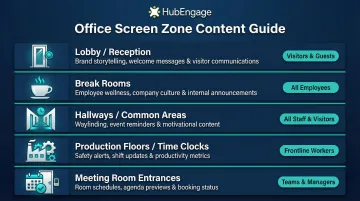
Primary screen location types and their content focus:
| Location | Primary Content | Key Audience |
|---|---|---|
| Lobby / Reception | Brand messaging, visitor wayfinding, directory info | Visitors, guests |
| Break Rooms | Employee recognition, culture content, benefits/wellness | All staff |
| Hallways / Common Areas | Company news, event announcements, milestones | All staff |
| Time Clocks / Production Floors | Safety alerts, shift schedules, production KPIs | Frontline workers |
| Meeting Room Entrances | Room availability, meeting details, wayfinding | Office workers |
Screen placement decisions should reflect who actually works in each space — and for many organizations, that means prioritizing deskless employees. Deskless workers make up 70-80% of the global workforce, yet 78% lack a company email address. For these employees, digital signage isn't a supplementary channel — it's often the only one.
Assess Site Readiness Before Committing to Hardware
Confirm these requirements before ordering hardware:
- Power outlets and electrical capacity at intended screen locations
- Network coverage and bandwidth (wired or Wi-Fi) at those spots — screens need 8-12 Mbps for standard 1080p content
- Wall structure and mounting compatibility (drywall vs. concrete vs. glass partitions)
- Ambient lighting conditions that could affect screen visibility
Two requirements that can't be compromised:
- No glare-prone placements — if ambient light makes a screen unreadable at any point in the day, that location won't work regardless of display quality
- Stable network connectivity — 86% of digital signage failures trace back to weak or unstable internet connections, not hardware malfunctions
What You'll Need: Hardware, Software, and Infrastructure
A complete digital signage setup requires three components working together: the display hardware, a media player that runs content, and a software platform for managing what appears on screen. Cutting corners on any one of these creates downstream problems.
Hardware Essentials
Commercial-Grade Displays vs. Consumer TVs:
| Feature | Commercial Displays | Consumer TVs |
|---|---|---|
| Duty Cycle | 16/7 or 24/7 continuous operation | 6-8 hours/day maximum |
| Warranty | 3-year with on-site service | 1-year; voided if used commercially |
| Cooling | Powerful onboard systems; supports portrait mode | Limited cooling; prone to overheating |
| Build Quality | Protected from dust, heat, impacts | Easily damaged in commercial environments |
Consumer TVs fail in enterprise environments due to thermal limitations, lack of 24/7 duty cycles, and unpredictable OS updates that can break functionality. Commercial displays are designed for continuous operation with superior brightness, cooling, and reliability.
Media Players:
| Category | Best For | Key Characteristics |
|---|---|---|
| System-on-Chip (SoC) | Simple content, clean installations | Built into display (Samsung Tizen, LG webOS); lower cost, fewer failure points |
| Purpose-Built Commercial | Enterprise, 24/7 operation | High reliability, enterprise management, fanless designs (BrightSign, TelemetryOS) |
| Windows PCs | Complex interactive apps, video walls | Maximum power and flexibility, supports enterprise management |
| Consumer Streaming Sticks | Not recommended for commercial use | Lack enterprise management and 24/7 reliability; OS updates can break functionality |
Screen Size Guidance by Location:
- Lobby screens: 55"+ (viewing distance 10-15+ feet)
- Break rooms and hallways: 32"-55" (viewing distance 6-10 feet)
- Meeting room door panels: 10"-15" (viewing distance 3-6 feet)
Brightness Specifications:
- Standard indoor environments: 300-500 nits
- High-ambient light (lobbies near windows): 700-4,000 nits with anti-glare panels
Mounting and Cabling:
- Wall mounts, floor stands, or ceiling mounts based on location
- HDMI, power, and Ethernet cabling (wired connections preferred for reliability)
- Mounting height should be eye level or slightly above (typically 5-6 feet to screen center)
Software and Content Management
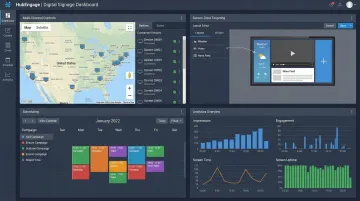
The software layer controls what appears on screen, when it appears, and who can change it. It enables centralized content scheduling, remote updates, zone-based content targeting, and integration with existing workplace tools like calendars, HR systems, or communication platforms.
Organizations with distributed workforces or multiple locations benefit most from a unified platform that manages digital signage alongside other employee communication channels. HubEngage's digital displays channel integrates with mobile, email, and SMS — so content teams reach employees on screens and on their phones without duplicating effort. The platform auto-formats content for each channel, saving time and ensuring messages land where employees actually are.
Key CMS Capabilities:
- Schedules content by time of day and targets specific zones or locations
- Monitors device status remotely and pushes updates across all screens from one dashboard
- Controls user access with granular permissions and approval workflows
- Includes pre-built templates and integrations with PowerBI, SharePoint, Slack, and Microsoft Teams
42% of deployers report network and connectivity issues as a top deployment challenge, while 62% cite content creation resources as the primary obstacle. Prioritize a CMS that non-technical users can operate independently — otherwise content goes stale fast.
How to Implement Office Digital Signage: Step-by-Step
Rushing past early steps—especially content planning and network testing—reliably causes rework and underperformance later. Follow this sequence to avoid it.
Step 1: Finalize Screen Locations and Infrastructure Prep
Once planning is complete, the first physical step is confirming and preparing each screen location:
- Run power and network connections
- Patch walls if needed
- Label each location in the CMS for future content targeting
- Confirm mounting hardware is appropriate for wall type and screen weight before drilling
Step 2: Install Hardware and Connect to Network
Follow this installation sequence:
- Mount the display at appropriate viewing height — eye level or slightly above, typically 5–6 feet to screen center
- Connect the media player to the display
- Cable power and data connections cleanly
- Power on and confirm network connectivity before moving to software setup
Validate viewing angle and distance in person before finalizing mount position. Audiences on the move have roughly 7-10 seconds to absorb a message, so placement must account for actual foot traffic patterns.
Step 3: Configure the Content Management Software
Initial CMS setup involves:
- Creating screen groups or zones by physical location (lobby, break room, production floor)
- Setting default content playlists for each zone
- Configuring update schedules — how often content refreshes
- Assigning user permissions so relevant team members can push content to specific screens
- Connecting integrations with calendar systems, HR tools, or existing communication platforms
Platforms that unify digital signage with other engagement channels — like HubEngage — give communications teams a single dashboard showing how employees are responding across every channel, so there's no need to toggle between systems.
Step 4: Create and Load Initial Content
Have content ready before screens go live — launching with empty or placeholder slides signals poor planning to employees. Content types that work best at launch:
- Company news and updates
- Employee recognition and celebrations
- Safety reminders and compliance alerts
- Event announcements
- Operational metrics and KPIs
Keep these design principles in mind when building each slide:
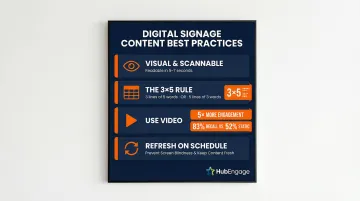
- Keep slides visual, brief, and scannable — readable in 5–7 seconds
- Follow the 3x5 rule: three lines of text with five words each, or five lines with three words each
- Use video where possible — video content drives 5x more engagement than static, with 83% recall vs. 52% for static images
- Refresh content on a defined schedule — screens showing the same slides for weeks become invisible
Step 5: Run Post-Installation Validation Checks
Before screens go "live" to all employees, complete these validation steps:
- Confirm content displays correctly at each location — check resolution, aspect ratio, and cropping
- Test remote content updates from the CMS
- Verify network-dependent content (live feeds, calendar integrations) loads reliably
- Walk each screen location to assess visibility, glare, and viewing angle from actual traffic paths
Skipping this step leads to issues being discovered by employees, which damages trust in the program.
Common Implementation Challenges and How to Fix Them
Most digital signage programs don't fail at installation — they stall in the weeks after launch. Here are the three issues that come up most often, and how to fix them.
Screens Displaying Outdated or Stale Content
Screens showing last month's event or a holiday message in February are a trust killer. It usually comes down to one of three things: no content calendar, unclear ownership, or a CMS too complicated for non-technical staff to update without IT help.
To fix it:
- Establish a content calendar with clear ownership (typically internal comms or HR)
- Set automatic expiry dates on time-sensitive content in the CMS
- Choose software that non-technical users can update without IT support
- Refresh corporate office screens weekly at minimum; update manufacturing/shift work screens 2-3 times per day
Network Connectivity Failures Causing Blank or Frozen Screens
Blank or frozen screens are usually a network problem — weak Wi-Fi at the screen location, insufficient bandwidth, or a media player that doesn't cache content locally. The frustrating part is this is almost always preventable with an upfront audit.
To fix it:
- Audit network coverage at each screen location during site assessment (not after installation)
- Use wired Ethernet connections where possible for mission-critical screens
- Select media players or software that support offline content caching so screens stay active during brief connectivity interruptions
- Ensure adequate bandwidth: 8-12 Mbps per screen for standard 1080p content
Low Visibility or Viewer Engagement
If employees are walking past screens without a second glance, placement and content design are the usual culprits — screens tucked behind pillars, mounted too high, or displaying dense text that nobody stops to read.
To fix it:
- Revisit placement against actual foot traffic patterns
- Redesign content to be more visual and scannable
- Increase content rotation frequency in high-traffic areas
- Reserve detailed content for break room screens where employees have dwell time to read
Pro Tips for Long-Term Digital Signage Effectiveness
Establish content governance from day one: Define who creates content, who approves it, and what content types belong on which screens. Without this, signage programs gradually degrade as ownership becomes unclear and screens show irrelevant or stale information.
Use analytics to optimize: Most enterprise CMS platforms provide data on content performance and screen activity. Track metrics like:
- System uptime and network performance
- Content update frequency
- Employee awareness surveys (correlation with engagement results)
- Reduction in internal communication emails
Platforms like HubEngage that unify digital signage with other engagement channels give communications teams a single view of how employees are responding across every channel — which leads directly to the next point.
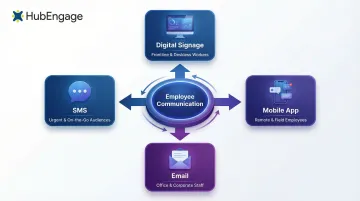
Treat digital signage as part of a multi-channel communication strategy: The most effective implementations mirror key messages across screens, mobile, and email so employees encounter information through their preferred channel. This matters most for deskless and frontline workers who may not regularly check email or intranet.
The retention stakes are real: 63% of employees considering leaving cite poor internal communication as a contributing factor, and employees who receive sufficient information are 35% more likely to stay.
Schedule a formal quarterly content and placement review. Each review should cover:
- Which screens are underperforming and why
- Whether content categories still align with current communication priorities
- Whether new screen locations should be added as the office evolves
Frequently Asked Questions
How much does it cost to implement digital signage in an office?
Costs vary widely based on deployment size and quality. A basic single-screen setup (commercial display + media player + software subscription) ranges from $1,500–$3,000 upfront, plus $10–$35 per screen monthly for software. Enterprise multi-location deployments average approximately $74 per screen per month over a 5-year total cost of ownership, including hardware, installation, software, content updates, and network costs.
What type of content works best on office digital signage screens?
Short, visual, and frequently refreshed content performs best: employee recognition, company news, safety reminders, event announcements, and operational metrics. Avoid long text blocks that take more than 5–7 seconds to read. Video content is 5x more engaging than static content, with 83% recall compared to 52% for static displays.
Where should digital signage screens be placed in an office?
Place screens in high-traffic and high-dwell areas: lobbies, break rooms, hallways near elevators, near time clocks or production floor entrances, and outside meeting rooms. Placement should match content type to audience behavior at each location—detailed content for break rooms where employees have dwell time, quick updates for hallways where employees are in motion.
Can digital signage replace email for internal communications?
Digital signage complements rather than replaces email. It's most effective for broadcast, visual, and time-sensitive messaging, especially for deskless workers without regular email access (78% of deskless workers lack a company email address). Digital signage works best as one channel in a multi-channel communication strategy.
Who should be responsible for managing office digital signage content?
Responsibility typically falls to internal communications, HR, or office management teams. Establish clear content ownership, approval workflows, and a refresh schedule from the outset—and choose software that non-technical users can update without IT support to prevent content going stale.
How do I measure whether my office digital signage program is working?
Track both direct indicators (screen uptime, content freshness, employee survey feedback on communication effectiveness) and indirect indicators (reduced reception inquiries for routine information, increased awareness of company events). Platforms with built-in analytics make this tracking easier and help teams act on what the data shows.