Modern workplaces run on connection. When team members can share ideas instantly, track progress in real-time, and coordinate across time zones, projects move faster and outcomes improve.
If you manage a distributed workforce or coordinate complex projects across departments, you understand the challenge of keeping everyone aligned. Team collaboration tools solve this by creating digital workspaces where information flows freely and team members stay connected regardless of location.
This guide highlights top team collaboration tools and provides a practical selection checklist, helping you compare features, evaluate options, and choose the best solution for your organization.
Key Takeaways
- Team collaboration tools help employees communicate, share files, and manage tasks in one place, improving overall productivity.
- Modern collaboration platforms support remote and hybrid work by enabling real-time messaging, video calls, and seamless document sharing.
- Choosing the right tool depends on your team size, workflow needs, and integration requirements with existing software.
- Effective collaboration tools reduce communication gaps, streamline workflows, and enhance team alignment across departments.
- Security, scalability, and ease of use are key factors to consider when selecting a collaboration solution for your organization.
- Investing in the right collaboration software can boost employee engagement, improve project outcomes, and drive business growth.
What are the Best Team Collaboration Tools?
HubEngage
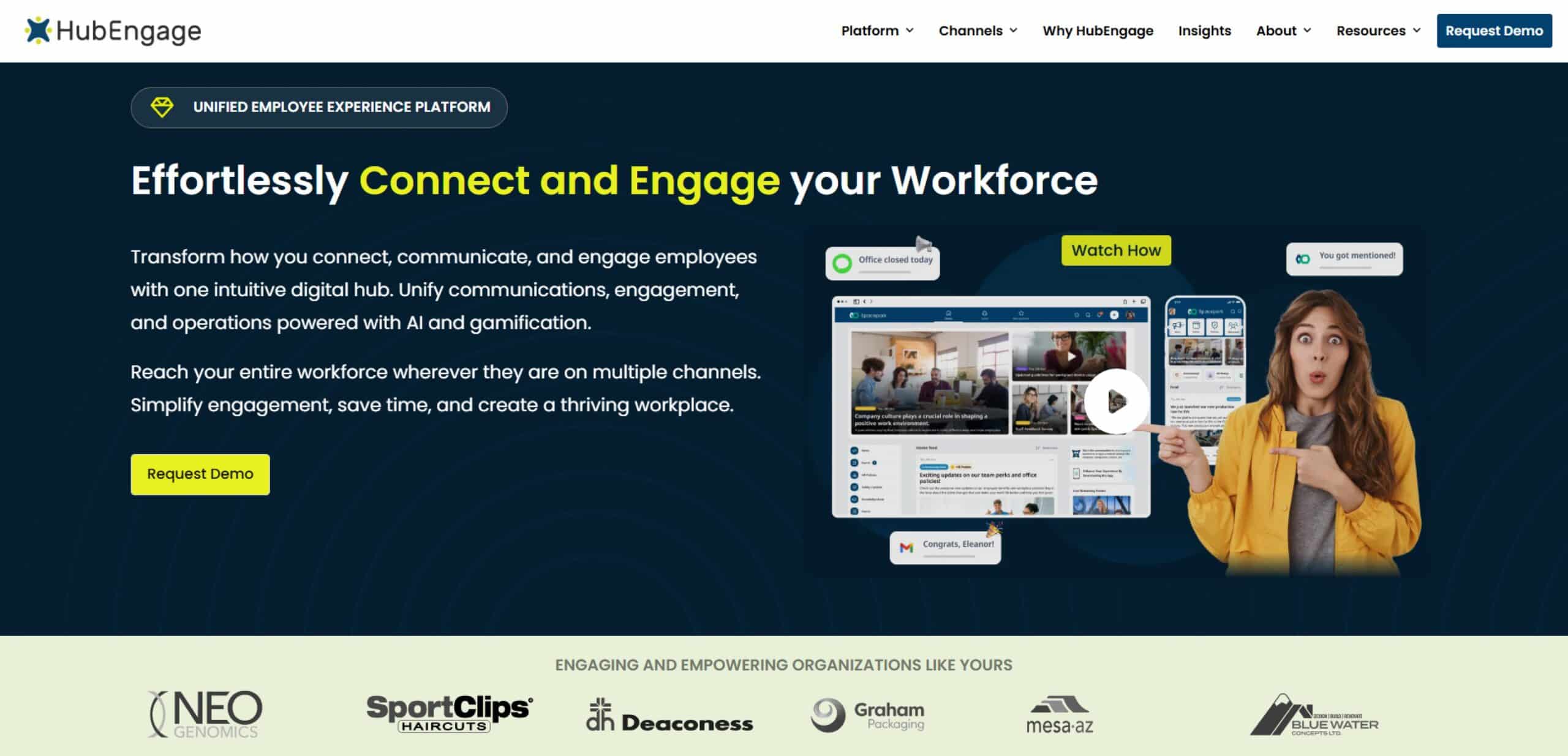
HubEngage is a modern workforce platform that brings together employee communication, engagement, and daily operations in one central system. It includes features like intranet, social interaction, recognition, surveys, messaging, AI chatbot, scheduling, task tracking, and time management in a single digital workspace, helping organizations manage employees more easily while boosting productivity and engagement for both desk and frontline teams.
Built on three main areas communication, operations, and engagement our platform creates a connected employee experience through multiple channels such as mobile apps, web, email, SMS, digital signage, Microsoft Teams, and Slack. Its flexible design also lets businesses begin with selected features and expand into a full workforce platform as their needs grow.
Key features:
- All-in-one workforce platform: Bring together communication, engagement, and operations in one flexible solution.
- Engagement features: Offers social feeds, recognition, gamification, surveys, and rewards to boost participation and morale.
- Operations tools: Manage scheduling, time tracking, tasks, and workforce coordination from a single system.
- AI-driven automation: Chatbots, smart search, and automated surveys make support and feedback easier.
- Multi-channel messaging: Connect with employees via mobile, web, email, SMS, digital signage, Teams, and Slack.
- Security and compliance: Meets HIPAA, GDPR, and enterprise-level security standards.
Pros:
- Grows smoothly from single tools to a full workforce experience platform
- Offers wide multi-channel access for deskless, remote, and frontline staff
- Brings together communication, engagement, and workforce tasks in one place
Cons:
- Certain advanced tools may need some setup and onboarding at first
- Companies with complex setups might require extra implementation help
HubEngage pricing: Free → Paid plans start at $1/month
2. Slack
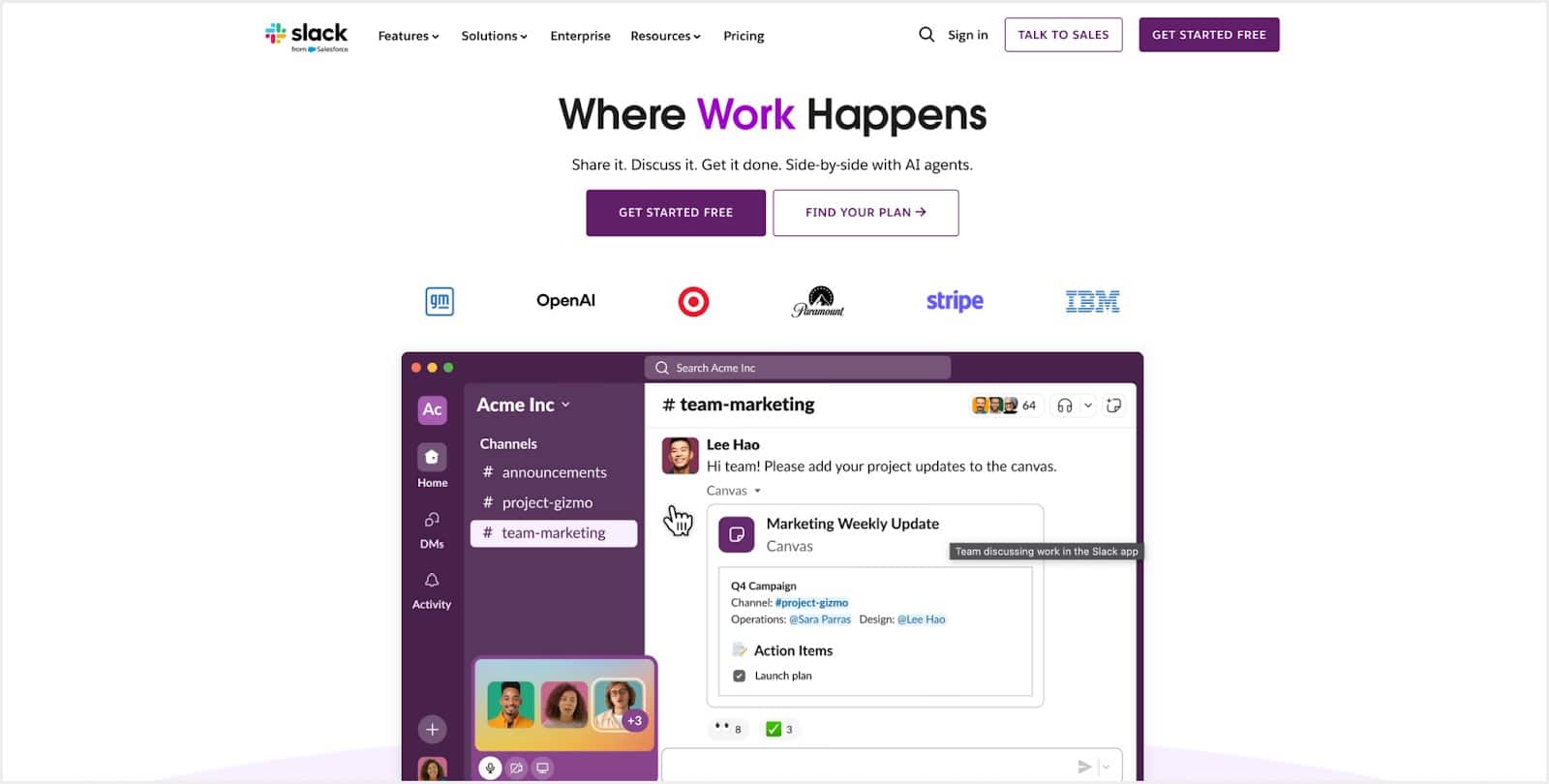
Slack’s blend of real‑time speed, async depth, and unmatched integration ecosystem makes it the backbone of our virtual‑first stack and an obvious choice for any “best collaboration platforms” roundup.
Key features:
- Threads and mentions for organized, ongoing conversations
- Slack Canvas for embedded notes and lightweight documentation
- Slack AI for summarizing threads and drafting follow-ups
- Integrations with ClickUp, Google Drive, Linear, and Reclaim.ai
- Huddles for quick, unscheduled conversations
Pros:
- Clean, intuitive UI across desktop and mobile
- Huge app ecosystem (2,600+ integrations)
Cons:
- Thread and channel sprawl can get noisy without norms
- Canvas still feels limited compared to dedicated docs
- Users can experience notification fatigue and disruptive interruptions
Slack pricing: Free → Paid plans start at $4.38/month
3. Google Workspace
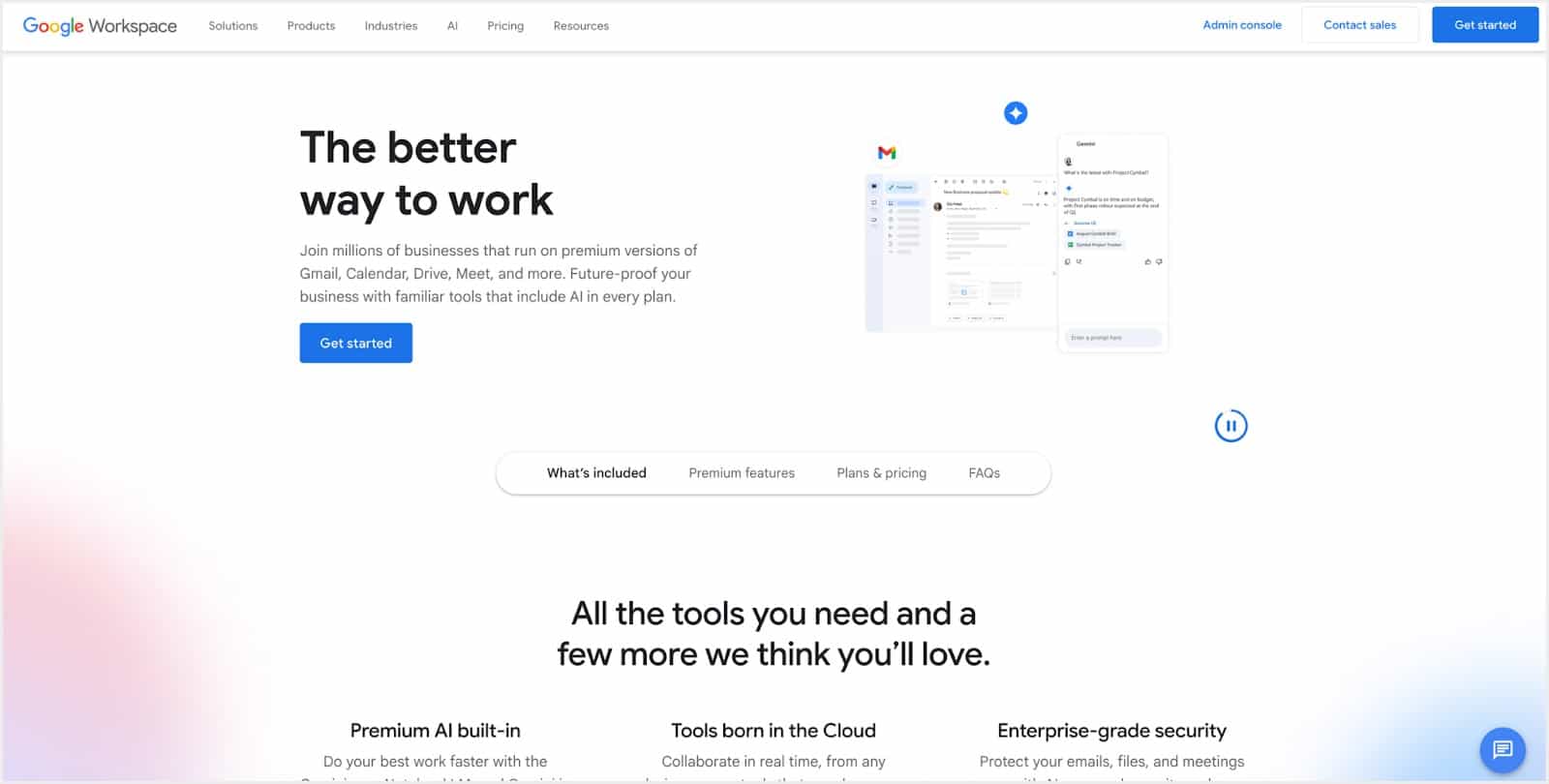
Google Workspace sets the standard for fast, real-time collaboration, particularly in distributed environments. It’s one of the few platforms that works equally well for async-planning and live working sessions.
Key features:
- Google Docs for drafting content, strategic planning, meeting agendas, and cross-functional reviews
- Sheets for roadmaps, scorecards, reporting, analysis, and budget modeling
- Calendar to manage daily schedules, meetings, and protect focused work time
- Drive for file storage, sharing, and access control
- Gmail for business email and integration with calendar invites, Docs, and file sharing
Pros:
- Fully integrated suite that centralizes content, communication, and calendars under one Google login
- Real-time editing with powerful commenting workflows
Cons:
- Chat is underpowered compared to Slack or Teams
- Folder-level permissions can become messy as teams scale
- Limited offline capability
Google Workspace pricing: Free → Paid plans start at $7/month
4. Jira
Jira is one of the most powerful tools for managing complex projects, especially for agile teams. With customizable workflows, automation, and real-time reporting, it supports both structured planning and flexible execution across teams.
Key features:
- Scrum and Kanban boards for project tracking
- Automation rules to streamline repetitive tasks
- Advanced reporting and dashboards for insights
- Issue tracking with customizable workflows
- Integrations with tools like Slack, GitHub, and Confluence
Pros:
- Highly customizable for different team workflows
- Scales well for teams of all sizes
Cons:
- Can be complex to set up and configure initially
- Interface may feel overwhelming for new users
- Advanced features often require higher-tier plans
Jira pricing: Free → Paid plans start at $7.75/user/month
5. Zoom Workplace
Zoom remains the most reliable way to get face time across teams, and with Smart Recording and AI summaries, it’s equally useful for async follow‑ups. It strikes a strong balance between real-time and async video communication.

Key features:
- Zoom Meetings for scheduled syncs and customer calls
- AI summaries for async follow‑ups
- High-quality screen sharing and breakout rooms
- Auto-transcription and Smart Recording tools
- Slack integration for linking recordings into threads
Pros:
- Consistent experience across devices and time zones
- Easy for guests and external partners to join
Cons:
- Less useful for documentation or written async workflows
- Smart Recording features are gated behind higher-tier plans
- AI tools are still in an early stage compared to specialized platforms
Zoom pricing: Free → Paid plans start at $13.33/month
6. Dropbox
Dropbox is dependable, fast, and incredibly easy to use. Its combination of lightning‑fast sync, reliable version history, and Dash’s cross‑app search makes Dropbox the backbone that keeps our files accessible and secure, no matter which other collaboration tools we use.

Key features:
- Shared folders with custom permission levels to keep projects organized and secure
- Dropbox Dash for AI-powered universal search and shortcuts
- Rich previews for PDFs, images, and videos
- File requests for uploading from partners or contractors
- Fast sync across devices and OS platforms
Pros:
- Clean UI and folder management
- Straightforward for external sharing
Cons:
- Free plan is limited
- File previews can be slow with very large files
- Can be expensive for individuals compared to alternatives
Dropbox pricing: Free → Paid plans start at $11.99/month
7. Microsoft Loop
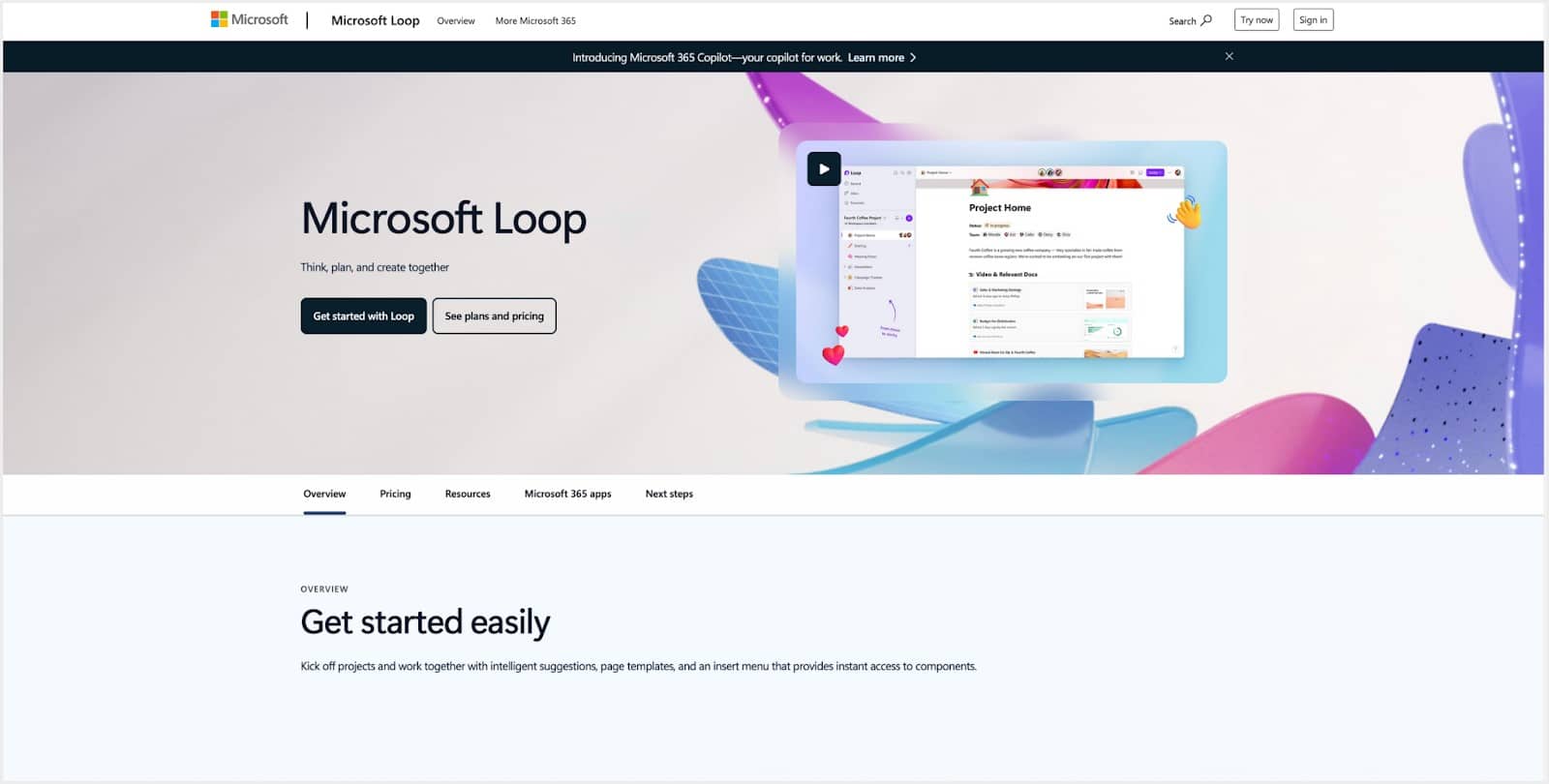
Microsoft Loop is a strong option for teams that need more than just documents or chats. It’s a unified space for creating, discussing, and tracking work. For organizations already using Microsoft 365, Loop offers a powerful way to reduce app-switching and improve cross-tool continuity.
Key features:
- Loop Components (tasks, tables, checklists, etc.) that sync across Teams, Outlook, Word, and Whiteboard
- Shared Loop Workspaces for collaborative project docs and meeting prep
- Real-time editing and commenting across users and platforms
- Deep integrations with Planner, Microsoft To Do, and OneDrive
- Microsoft Copilot support for AI-powered summaries, task creation, and drafting
Pros:
- Ideal for async and real-time hybrid workflows
- Loop Components are reusable, flexible, and embeddable
Cons:
- Still maturing; missing some granular permissions and templates
- Works best only if your team already uses Microsoft 365
- Not as open or flexible as tools like Notion or Coda
Microsoft Loop pricing: Included in Microsoft 365 plans starting at $6/month
8. Smartsheet
Smartsheet is a great choice for teams that want the familiarity of a spreadsheet but need the power of a full work platform. Its flexibility, combined with advanced reporting and integration options, makes it a top pick for teams scaling project collaboration across stakeholders.

Key features:
- Grid, Gantt, Calendar, and Card views to suit different working styles
- Automated workflows for status updates, alerts, approvals, and recurring tasks
- Dashboards and reports for real-time visibility and stakeholder alignment
- Integrations with Google Workspace, Microsoft 365, Slack, Jira, and more
- AI tools to auto-generate formulas, summaries, and charts
Pros:
- Familiar spreadsheet-like UI with powerful flexibility
- Great for resource planning and status reporting at scale
Cons:
- Can feel rigid for creative or design-driven teams
- Not ideal for lightweight task tracking or solo users
- Advanced functionality takes time to configure well
Smartsheet pricing: Free → Paid plans start at $9/month
9. Monday.com
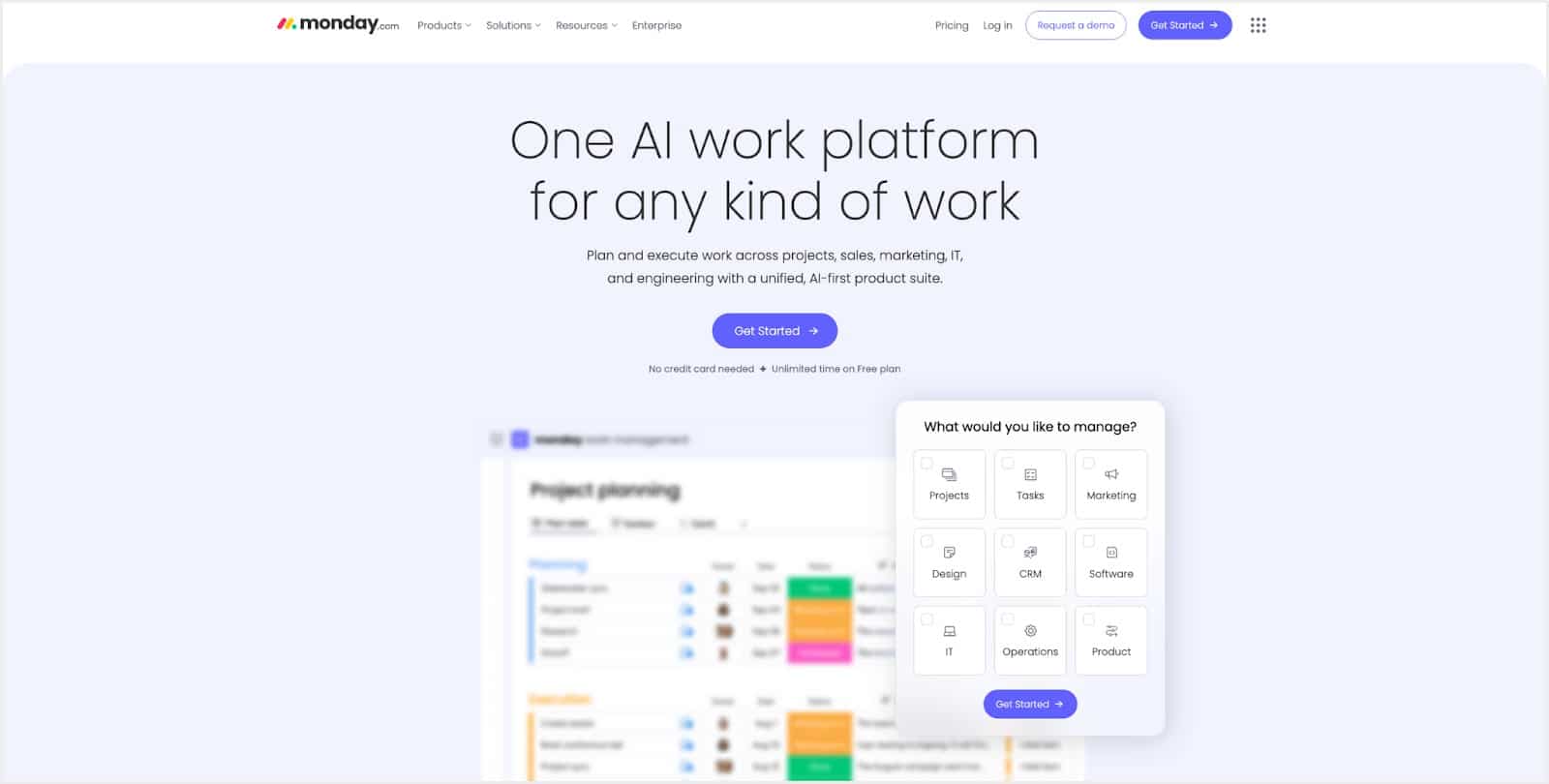
Monday.com scales from solo projects to enterprise-grade workflows. Its workspaces support both strategic planning and day-to-day task execution, with flexible views and in‑platform form building. It’s a compelling option for teams that want both structure and creativity in one tool.
Key features:
- Multiple views: Board, Timeline, Gantt, Kanban, Table, Calendar
- No-code automation: rule-based triggers for task updates, notifications, and workflows
- Widget-enabled dashboards and real-time reporting across boards
- AI-powered tools like Monday Magic and Monday Sidekick for board generation, workflow design, and smart insights
Pros:
- Highly visual, intuitive, and adaptable to different team needs
- Strong automation for reducing manual coordination
Cons:
- Nimble teams may find setting up automations or dashboards overkill
- Deeper AI features and automations often require higher-tier plans
- Can get expensive at scale unless usage tightly managed
Monday.com pricing: Free → Paid plans start at $12/month
10. GitHub
It’s the most trusted, developer-friendly platform for collaborative coding, and increasingly useful for product visibility and planning as well.

Key features:
- Pull requests with inline comments, approvals, and checks
- Branch protections for quality control
- Actions for CI/CD workflows
- Slack and Linear integrations for real-time updates
Pros:
- Familiar to nearly every developer
- Robust community, ecosystem, and open source visibility
Cons:
- Not ideal for non-developers or cross-functional teams
- Projects are still basic compared to full PM tools
- Interface can feel cluttered in large orgs
GitHub pricing: Free → Paid plans start at $4/month
How to choose the right Team Collaboration Tool?
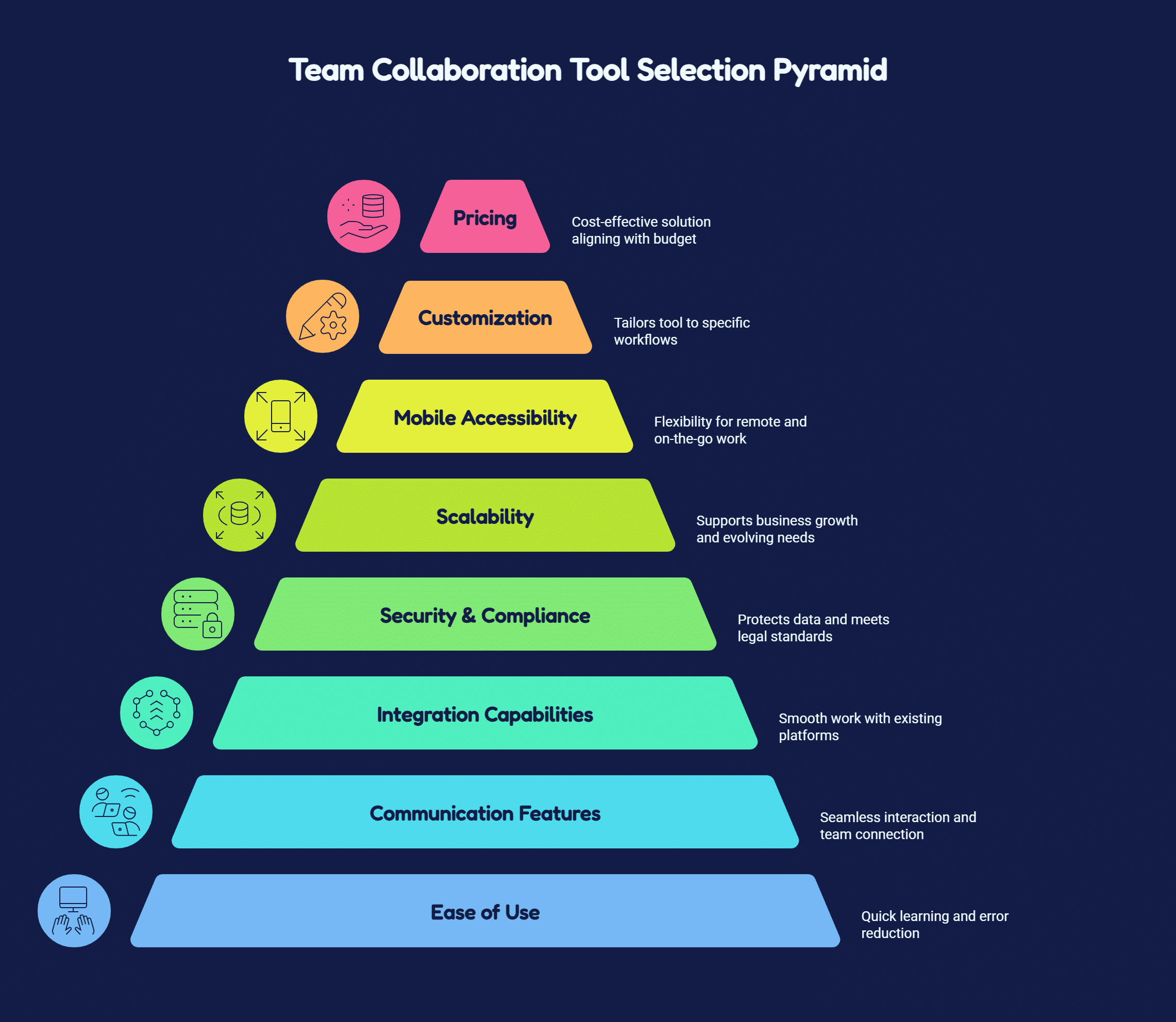
A checklist helps you systematically evaluate the team collaboration tool to make confident, informed decisions. Here is our checklist we follow to select the right tool.
Conclusion
There is no one “ideal” team collaboration tool for all business. Selecting the appropriate team collaboration tools can greatly boost productivity, simplify communication, and build a more unified workforce.
As workplaces keep evolving, investing in the right solutions becomes crucial for long-term success. What we suggest? Pick tools that minimize friction, align with where your team already operates, and grow with you as your requirements change
Discover how HubEngage Employee Experience Platform can help achieve your collaboration goals by booking a personalized demo today.
FAQs on Team Collaboration Tools
How do team collaboration tools improve remote work productivity?
Team collaboration tools improve remote work productivity by enabling real-time communication, easy file sharing, and centralized project tracking. They reduce delays, support flexible work across time zones, and help teams stay connected and organized.
What’s the difference between team collaboration tools and email for business communication?
Team collaboration tools offer real-time messaging, shared workspaces, and searchable conversations, while email is slower and creates scattered information. Collaboration tools improve teamwork, speed up decisions, and keep all communication organized in one place.
How do small businesses benefit from team collaboration tools compared to larger enterprises?
Small businesses benefit from collaboration tools by improving communication, reducing meeting time, and increasing efficiency. These tools help small teams stay organized, manage tasks easily, and grow faster without needing complex systems or large budgets.
Can team collaboration tools replace project management software entirely?
Team collaboration tools support communication and coordination but may not fully replace project management software. For simple tasks they work well, but complex projects still need detailed planning, tracking, and reporting features.
What security risks should organizations consider with team collaboration tools?
Team collaboration tools may face risks like data breaches, unauthorized access, and compliance issues. Organizations should check encryption, access controls, and security policies, especially when employees use personal devices for work communication.
How long does it typically take for teams to fully adopt new collaboration tools?
Teams usually start using collaboration tools within 2 to 4 weeks, but full adoption takes around 2 to 3 months. Proper training, clear guidelines, and management support help teams adapt faster and use tools effectively.
Related Links
workforce management | team management app | mobile workforce management software